> ## Documentation Index
> Fetch the complete documentation index at: https://ngquct-docs-fix-500-query-results.mintlify.site/llms.txt
> Use this file to discover all available pages before exploring further.
# Managing Connections
> Create, organize, and switch database connections
Press `Cmd+N` anywhere in the app to open the connection form. **Create Connection…** on the welcome window does the same, and the **Add from Existing** menu under it takes one from a URL, [another client](/features/connection-sharing), a [project folder](/features/project-folder-import), or an exported file. Saved connections fill the right side of that window under a search field, focused by `Cmd+F`, and offer **Try Sample Database** until you save something of your own.

 ## Create a connection
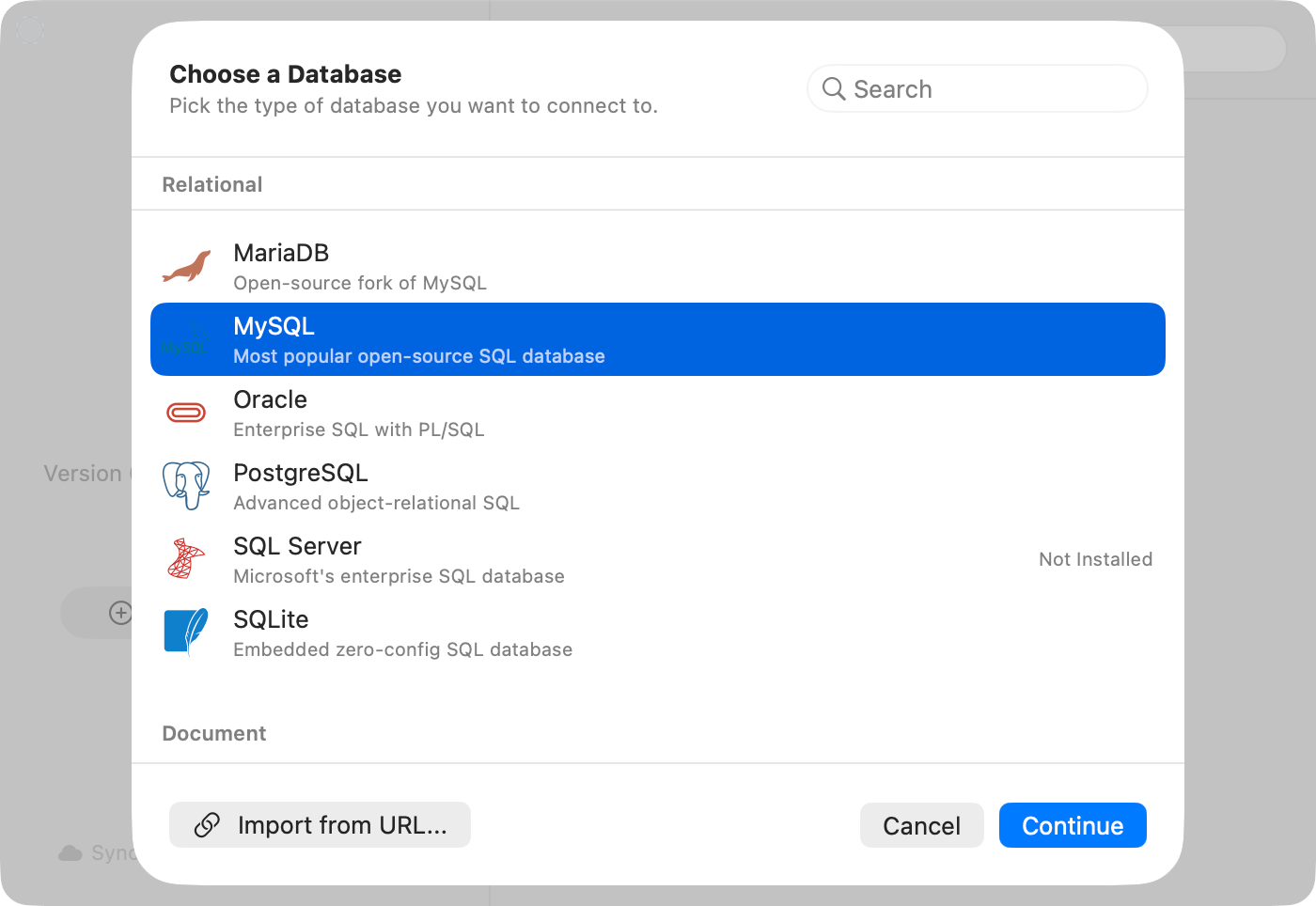
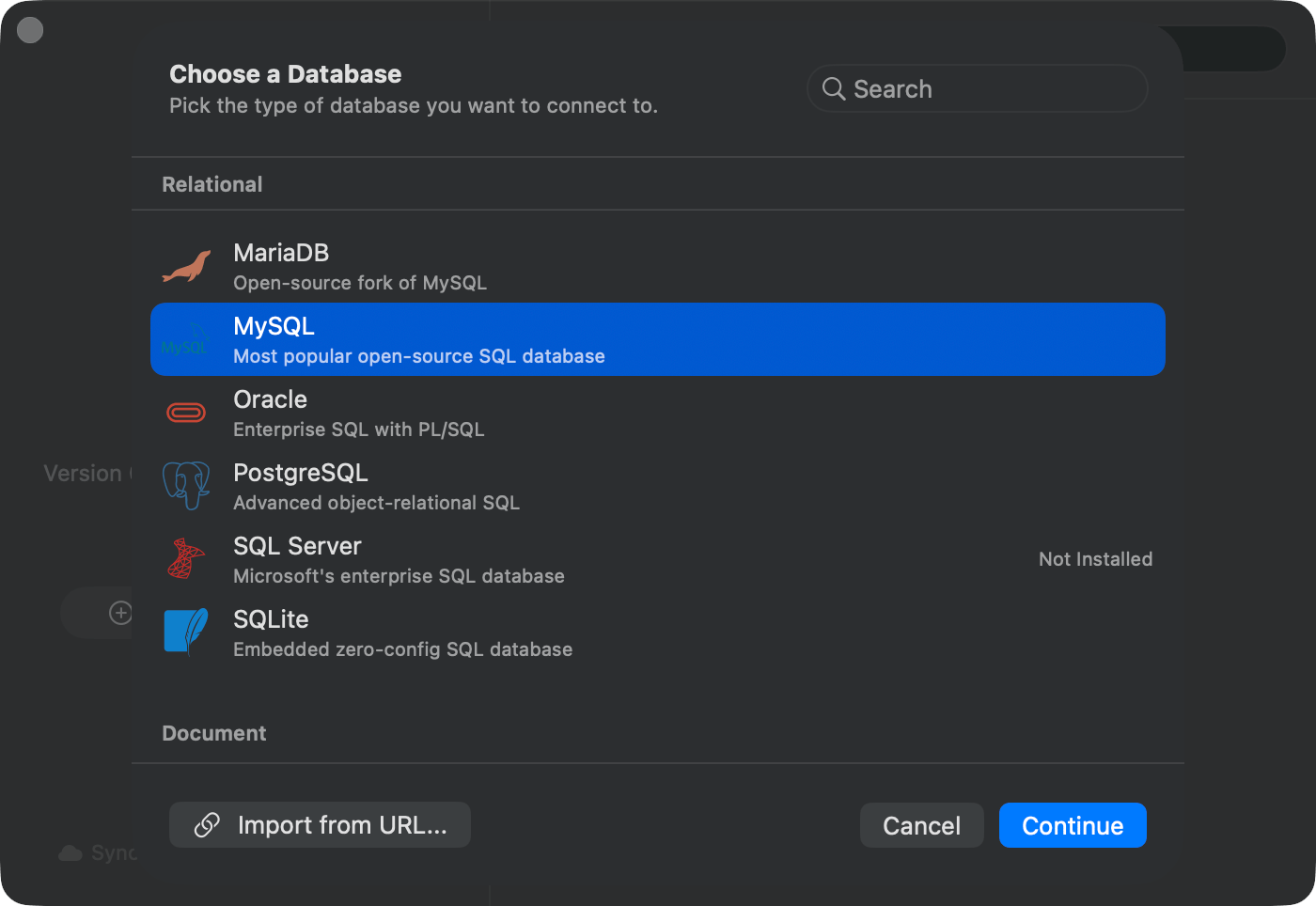
The chooser sheet groups drivers as Relational, Document, Key-Value, Analytical, Wide-Column, Cloud Native, Coordination & Config, and Other. Picking a driver badged **Not Installed** offers the download before the form opens. See [Plugins](/features/plugins).
Host, port, and credentials live on **General**. Everything else has a pane of its own; see [Connection form](/connections/connection-form).
On success the button becomes a green checkmark and reads **Connected**. On failure a **Connection Test Failed** sheet carries the driver's own message, and for errors the driver recognizes a diagnostic sheet appears instead, with suggested fixes and **Copy Diagnostic Info**.
The connection is saved and the window opens on it. **Save** alone keeps it without connecting.
## Create a connection
The chooser sheet groups drivers as Relational, Document, Key-Value, Analytical, Wide-Column, Cloud Native, Coordination & Config, and Other. Picking a driver badged **Not Installed** offers the download before the form opens. See [Plugins](/features/plugins).
Host, port, and credentials live on **General**. Everything else has a pane of its own; see [Connection form](/connections/connection-form).
On success the button becomes a green checkmark and reads **Connected**. On failure a **Connection Test Failed** sheet carries the driver's own message, and for errors the driver recognizes a diagnostic sheet appears instead, with suggested fixes and **Copy Diagnostic Info**.
The connection is saved and the window opens on it. **Save** alone keeps it without connecting.
 Every driver's default port, and which of SSH tunnel, SSL/TLS, Cloudflare Tunnel, Cloud SQL Proxy, and SOCKS Proxy it accepts, is in the [connection form reference](/connections/connection-form#which-drivers-get-which-panes).
### Import from URL
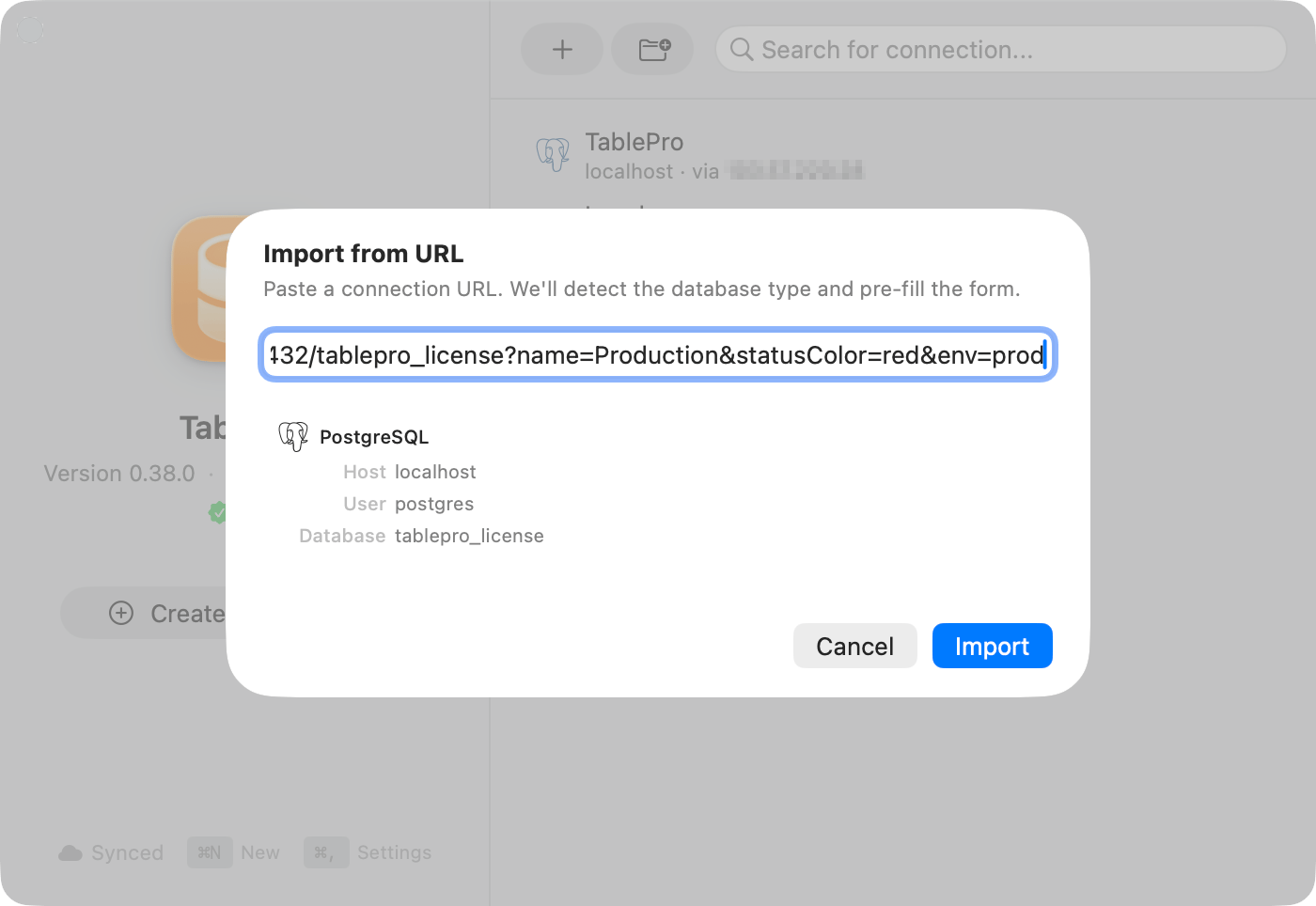
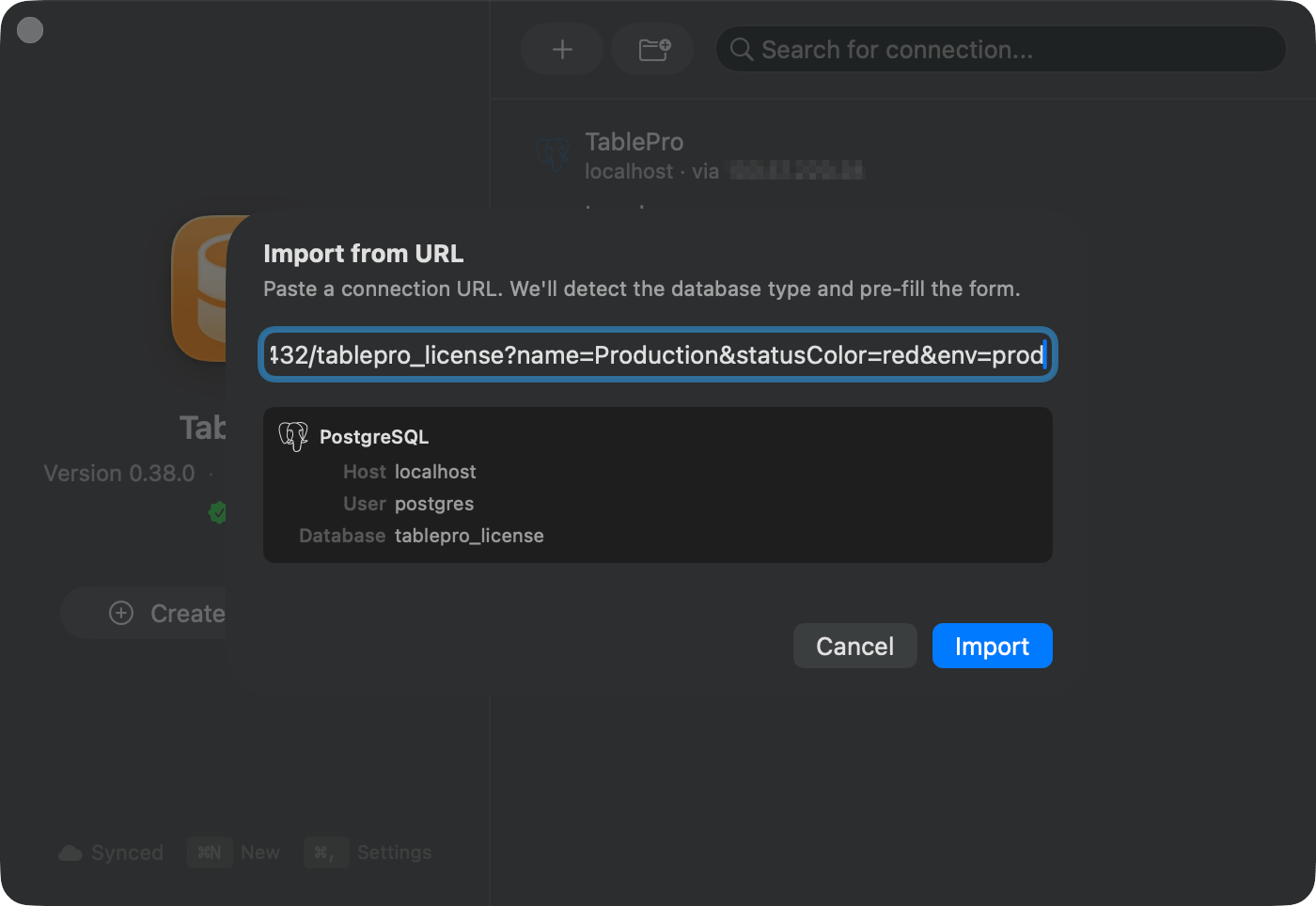
Paste a connection string instead of typing the fields. Click **Import from URL…** in the chooser sheet footer, paste, check the parsed preview, and click **Import**. The form opens filled in, ready to save. Schemes, query parameters, and the `+ssh` form are in the [Connection URL Reference](/connections/urls).
Every driver's default port, and which of SSH tunnel, SSL/TLS, Cloudflare Tunnel, Cloud SQL Proxy, and SOCKS Proxy it accepts, is in the [connection form reference](/connections/connection-form#which-drivers-get-which-panes).
### Import from URL
Paste a connection string instead of typing the fields. Click **Import from URL…** in the chooser sheet footer, paste, check the parsed preview, and click **Import**. The form opens filled in, ready to save. Schemes, query parameters, and the `+ssh` form are in the [Connection URL Reference](/connections/urls).
 Special characters in passwords (`@`, `#`, `%`) need percent-encoding. `p@ssword` becomes `p%40ssword`.
### Open a URL without saving anything
```bash theme={null}
open "postgresql://user:pass@host:5432/dbname"
```
A confirmation alert names the target first. Matching a saved connection on type, host, port, database, and username reuses it; otherwise the session is temporary and never joins your connection list, and the URL's password stays in memory rather than reaching the Keychain. [Confirmation and trusted links](/connections/urls#confirmation-and-trusted-links) covers **Always Allow** and how to revoke it.
## Organize connections
The **Customization** pane holds a color, tags, and a group. The color tints the toolbar while the connection is open.
Special characters in passwords (`@`, `#`, `%`) need percent-encoding. `p@ssword` becomes `p%40ssword`.
### Open a URL without saving anything
```bash theme={null}
open "postgresql://user:pass@host:5432/dbname"
```
A confirmation alert names the target first. Matching a saved connection on type, host, port, database, and username reuses it; otherwise the session is temporary and never joins your connection list, and the URL's password stays in memory rather than reaching the Keychain. [Confirmation and trusted links](/connections/urls#confirmation-and-trusted-links) covers **Always Allow** and how to revoke it.
## Organize connections
The **Customization** pane holds a color, tags, and a group. The color tints the toolbar while the connection is open.
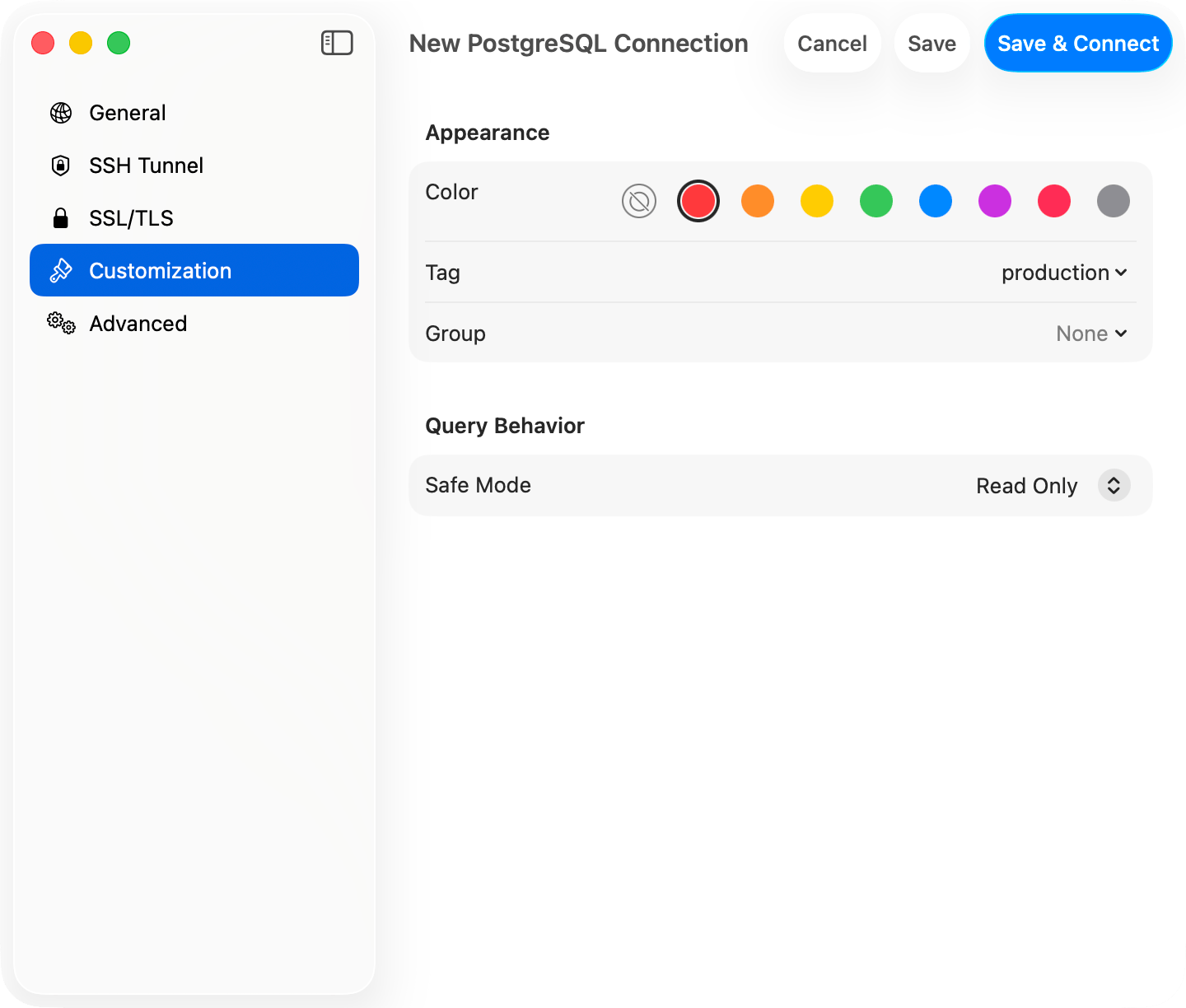
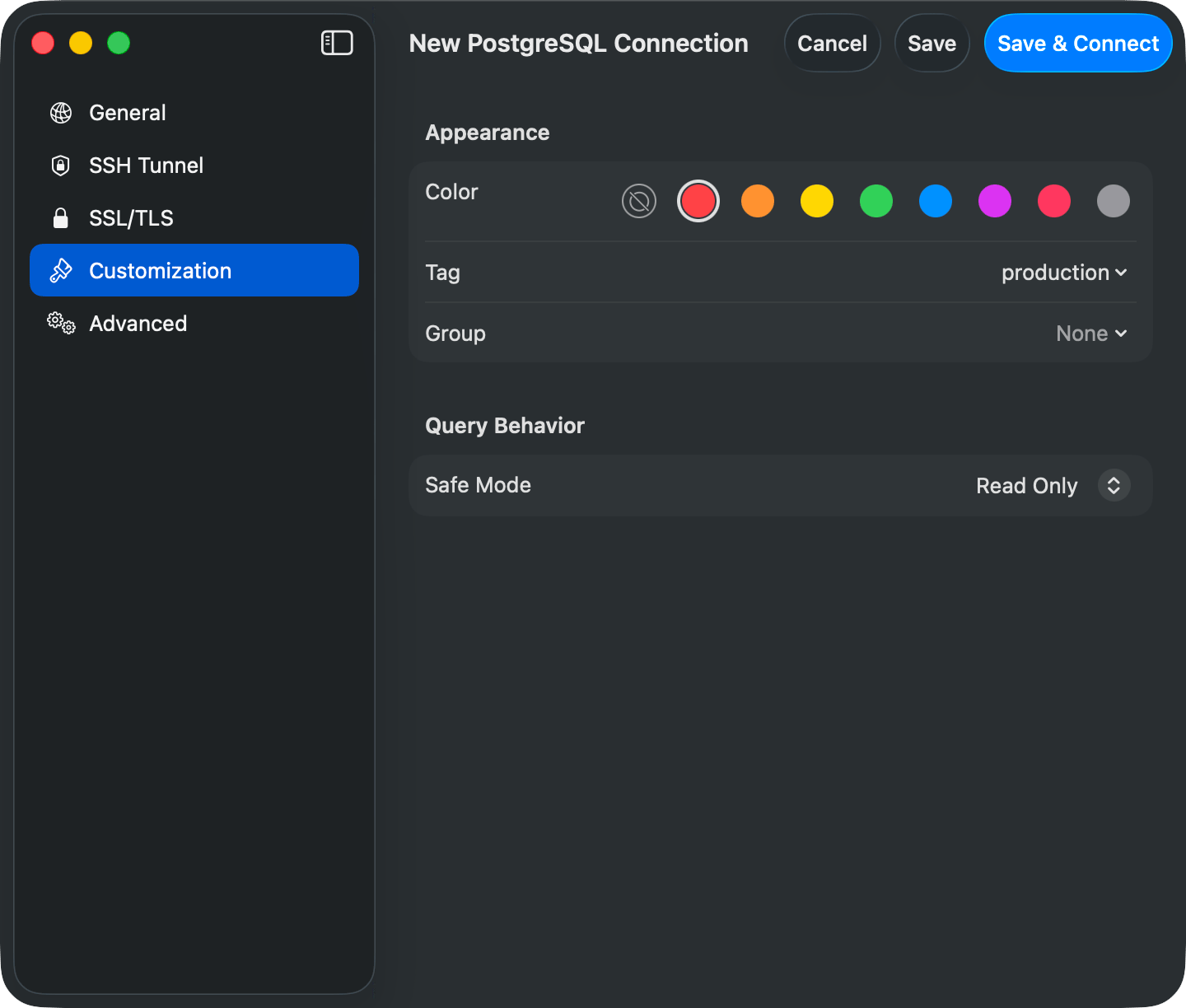 Red for production, green for development. Set Safe Mode to **Read-Only** on production to block accidental writes. See [Safe Mode](/features/safe-mode).
| | How it works |
| ------------- | -------------------------------------------------------------------------------------------------------------------------------------------------------------------------------------------------------------------------------------------------------------------------------------------------------------------------- |
| **Groups** | Folders in the connection list, nested up to three levels. Right-click empty space for **New Group…**, or a group for **Rename**, **New Subgroup**, **Change Color**, **Move Group to…**, and **Delete Group**. Deleting a group deletes its subgroups too and leaves the connections inside ungrouped rather than deleted |
| **Tags** | Several per connection, each with a name and color. Once any connection is tagged, a row of pills appears above the list; click to filter, and with two or more selected a **Match Any** / **Match All** menu switches between OR and AND. **Clear** resets it |
| **Favorites** | Hover a row and click the star, or right-click and choose **Add to Favorites**. Favorites gather in a section at the top, sorted alphabetically, while the connection keeps its place in its group |
A connection's group, tags, and favorite star sync through iCloud unless it is marked local only. See [iCloud Sync](/features/icloud-sync).
## Switch connections and databases
**Switch Connection** (`Ctrl+Cmd+C`) lists active sessions and saved connections: type to filter, arrow keys to move, Return to switch. **Open Database** (`Cmd+K`) moves to another database on the same server.
Red for production, green for development. Set Safe Mode to **Read-Only** on production to block accidental writes. See [Safe Mode](/features/safe-mode).
| | How it works |
| ------------- | -------------------------------------------------------------------------------------------------------------------------------------------------------------------------------------------------------------------------------------------------------------------------------------------------------------------------- |
| **Groups** | Folders in the connection list, nested up to three levels. Right-click empty space for **New Group…**, or a group for **Rename**, **New Subgroup**, **Change Color**, **Move Group to…**, and **Delete Group**. Deleting a group deletes its subgroups too and leaves the connections inside ungrouped rather than deleted |
| **Tags** | Several per connection, each with a name and color. Once any connection is tagged, a row of pills appears above the list; click to filter, and with two or more selected a **Match Any** / **Match All** menu switches between OR and AND. **Clear** resets it |
| **Favorites** | Hover a row and click the star, or right-click and choose **Add to Favorites**. Favorites gather in a section at the top, sorted alphabetically, while the connection keeps its place in its group |
A connection's group, tags, and favorite star sync through iCloud unless it is marked local only. See [iCloud Sync](/features/icloud-sync).
## Switch connections and databases
**Switch Connection** (`Ctrl+Cmd+C`) lists active sessions and saved connections: type to filter, arrow keys to move, Return to switch. **Open Database** (`Cmd+K`) moves to another database on the same server.
 Leaving **Database** empty on MySQL, MariaDB, MongoDB, SQL Server, and ClickHouse browses every database the user can reach. PostgreSQL and Redshift need one to connect at all: use `postgres` (Redshift: `dev`) and switch with `Cmd+K`. To hide the rest, choose **View > Filter Databases** and check the ones you want; the choice is saved per connection.
## Edit, delete, and where it all lives
Right-click a connection to edit or delete it, or swipe left on the row for the same two buttons. Swiping never deletes on its own. Edits apply on the next connect, and deleting removes the saved settings, nothing on the server.
Connections are stored in `~/Library/Application Support/TablePro/connections.json` with their passwords in the macOS Keychain, so copying that file to another Mac restores the connections without the passwords.
Right-clicking the Dock icon lists saved connections under **Open Connection**.
Leaving **Database** empty on MySQL, MariaDB, MongoDB, SQL Server, and ClickHouse browses every database the user can reach. PostgreSQL and Redshift need one to connect at all: use `postgres` (Redshift: `dev`) and switch with `Cmd+K`. To hide the rest, choose **View > Filter Databases** and check the ones you want; the choice is saved per connection.
## Edit, delete, and where it all lives
Right-click a connection to edit or delete it, or swipe left on the row for the same two buttons. Swiping never deletes on its own. Edits apply on the next connect, and deleting removes the saved settings, nothing on the server.
Connections are stored in `~/Library/Application Support/TablePro/connections.json` with their passwords in the macOS Keychain, so copying that file to another Mac restores the connections without the passwords.
Right-clicking the Dock icon lists saved connections under **Open Connection**.