> ## Documentation Index
> Fetch the complete documentation index at: https://ngquct-docs-fix-500-query-results.mintlify.site/llms.txt
> Use this file to discover all available pages before exploring further.
# MySQL
> Connect to MySQL 5.7 and later with the bundled MariaDB Connector/C driver
MySQL 8 accounts on `caching_sha2_password` connect on the first try, with no auth plugin to switch over. The same bundled driver covers 5.7 and later, and MariaDB as well; MariaDB-specific notes are on [MariaDB](/databases/mariadb).
## Quick setup
Click **Create Connection…** on the welcome window and pick **MySQL**
Fill in host, port, and credentials, click **Test Connection**, then **Save & Connect**
## Connection settings
| Field | Default | Notes |
| ------------ | ----------- | ------------------------------------------------- |
| **Host** | `localhost` | TCP only, never a Unix socket |
| **Port** | `3306` | |
| **Username** | empty | An empty field connects as your macOS login name |
| **Password** | empty | Stored in the macOS Keychain |
| **Database** | empty | Optional. Leave it empty to browse every database |
The session character set is `utf8mb4`, so emoji and non-Latin text round-trip untouched. A connect attempt gives up after 10 seconds.
## Connection URL
```text theme={null}
mysql://user:password@host:3306/database
```
Opening a URL connects directly. See [Connection URL Reference](/connections/urls).
## Common setups
| Where | Settings |
| ----------------- | ----------------------------------------------------------------------------------------------------------------------- |
| Homebrew | `localhost:3306` |
| Docker | `localhost` with the mapped port, password from `MYSQL_ROOT_PASSWORD` |
| MAMP Pro | `localhost:8889`, user and password `root` |
| AWS RDS / Aurora | Endpoint hostname, password or [AWS IAM](/connections/aws-iam), which signs a fresh 15-minute token on each connect |
| Google Cloud SQL | **Enable Cloud SQL Auth Proxy** and the instance name, in the [Cloud SQL Auth Proxy](/connections/cloud-sql-proxy) pane |
| Remote production | [SSH tunnel](/connections/ssh-tunneling) |
## Users & Roles
**Database > Users & Roles** manages users, roles, and privileges. Changes are staged and shown as SQL before they run. See [Users & Roles](/features/users-roles).
## Query plans
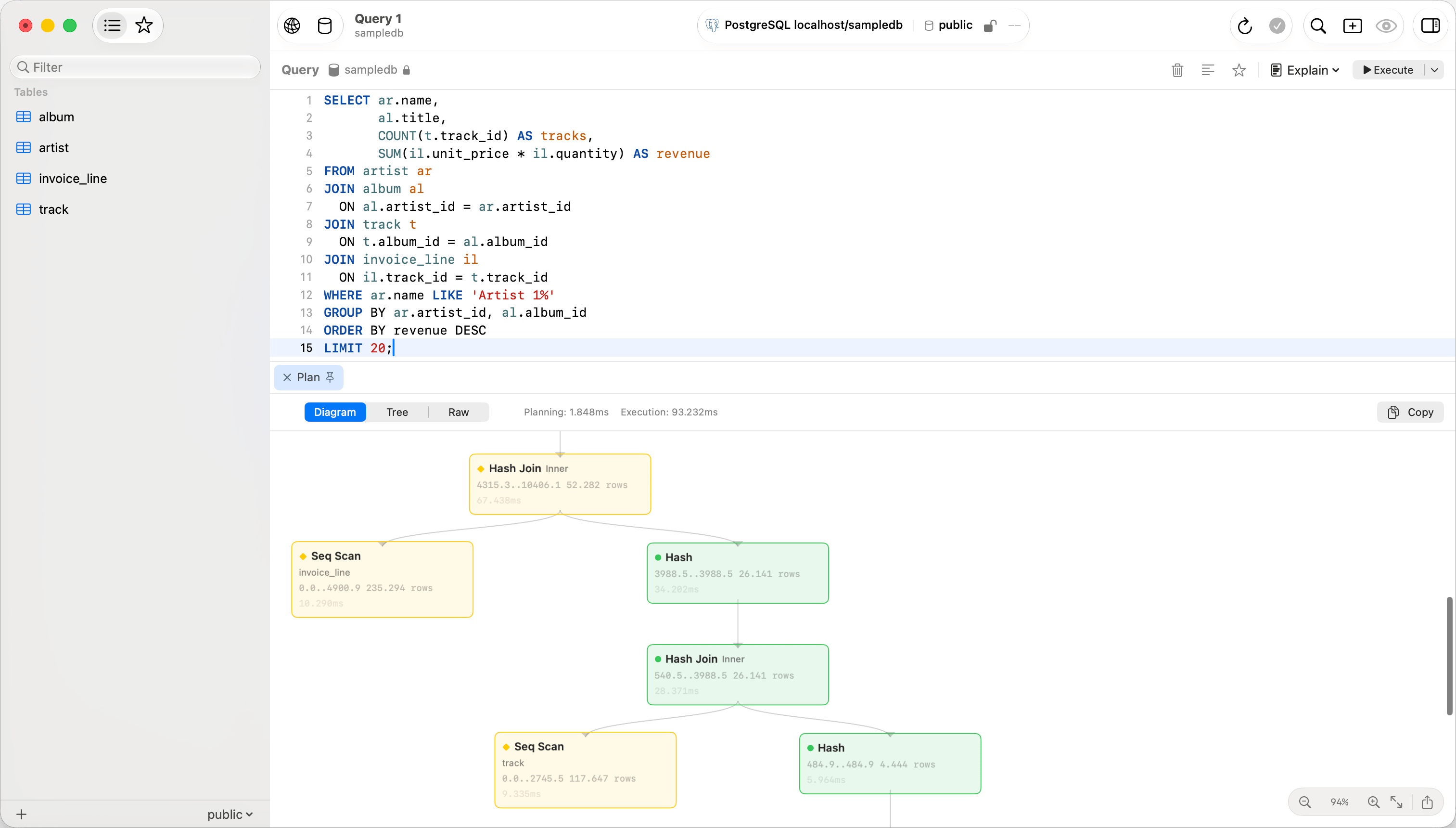
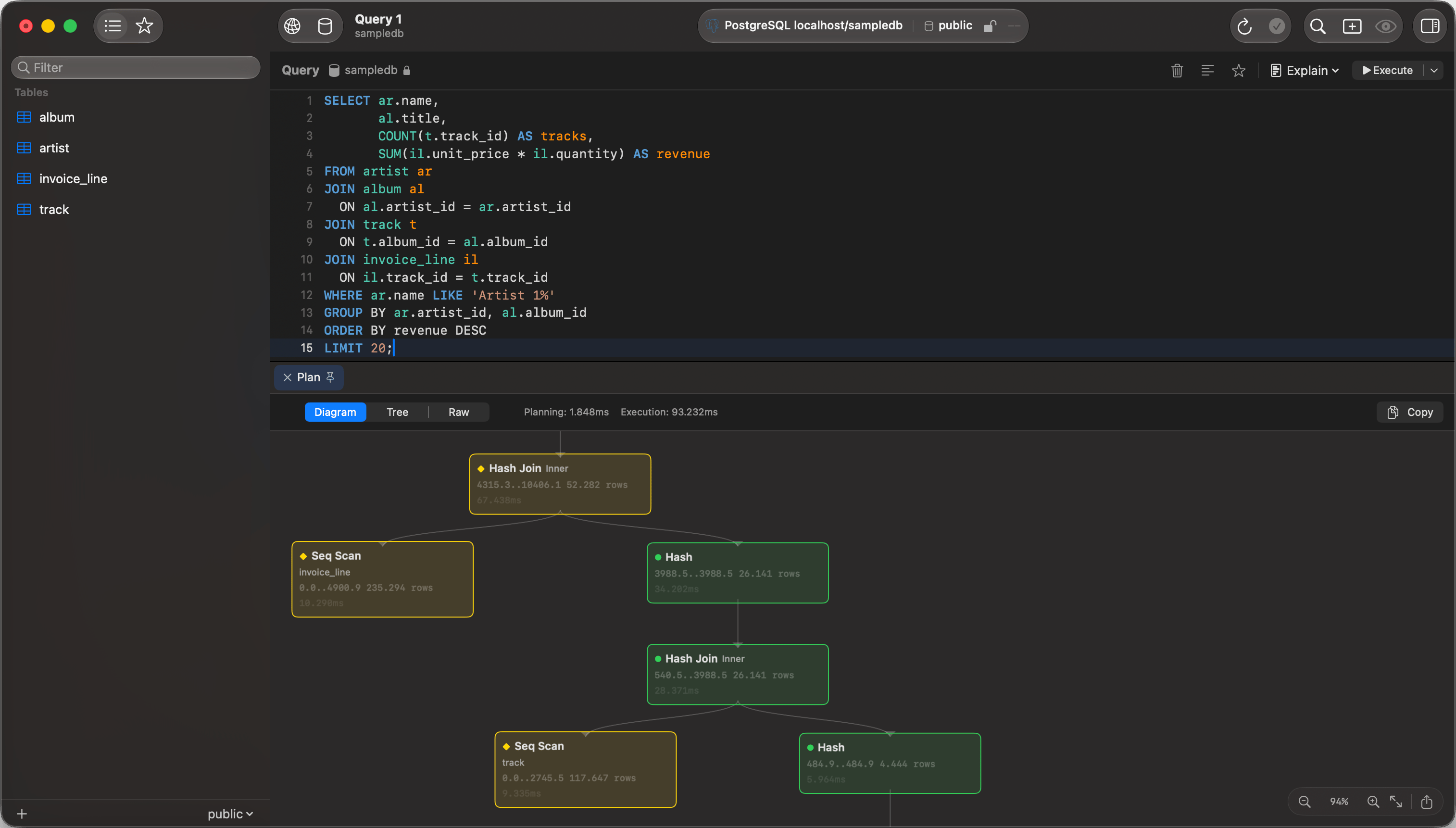
`EXPLAIN FORMAT=JSON`, `EXPLAIN FORMAT=TREE`, and `EXPLAIN ANALYZE` render as a plan diagram or tree; plain multi-column `EXPLAIN` stays in the results grid. See [EXPLAIN Visualization](/features/explain-visualization).
 ## Browsing
The sidebar lists every accessible database with each table's structure and DDL. Switch databases with `Cmd+K`. A tab keeps the database it was opened on; MySQL switches database in place, so that tab runs on the same connection rather than a second one.
Table and column comments show in the UI: dimmed after a table's name in the sidebar, and in the grid header tooltip. Right-click the sidebar and choose **View Options > Comments** to turn that off.
## SSL/TLS
New connections default to **Preferred**: TLS first, dropping to plain text only after an SSL handshake error. Pick **Verify CA** with the provider's certificate for strict validation. See [SSL/TLS](/connections/ssl).
## Limitations
* No Unix socket connections. Give the connection a host and a port, and leave networking on in the server.
* `LOAD DATA LOCAL INFILE` is refused by the driver. Load the file with **File > Import > Import Data…** instead.
## Troubleshooting
**Connection refused**: check the server is running (`brew services start mysql`), the port is right, and `skip-networking` is not set.
**Access denied for user '…'@'…' (using password: YES)**: the password is wrong, or the grant does not cover the host you are connecting from. Check both with `SHOW GRANTS FOR 'user'@'host';`.
**Auth plugin errors**: `caching_sha2_password` needs no configuration. For any other plugin error, read the account's plugin with `SELECT user, plugin FROM mysql.user;`.
## Browsing
The sidebar lists every accessible database with each table's structure and DDL. Switch databases with `Cmd+K`. A tab keeps the database it was opened on; MySQL switches database in place, so that tab runs on the same connection rather than a second one.
Table and column comments show in the UI: dimmed after a table's name in the sidebar, and in the grid header tooltip. Right-click the sidebar and choose **View Options > Comments** to turn that off.
## SSL/TLS
New connections default to **Preferred**: TLS first, dropping to plain text only after an SSL handshake error. Pick **Verify CA** with the provider's certificate for strict validation. See [SSL/TLS](/connections/ssl).
## Limitations
* No Unix socket connections. Give the connection a host and a port, and leave networking on in the server.
* `LOAD DATA LOCAL INFILE` is refused by the driver. Load the file with **File > Import > Import Data…** instead.
## Troubleshooting
**Connection refused**: check the server is running (`brew services start mysql`), the port is right, and `skip-networking` is not set.
**Access denied for user '…'@'…' (using password: YES)**: the password is wrong, or the grant does not cover the host you are connecting from. Check both with `SHOW GRANTS FOR 'user'@'host';`.
**Auth plugin errors**: `caching_sha2_password` needs no configuration. For any other plugin error, read the account's plugin with `SELECT user, plugin FROM mysql.user;`.