> ## Documentation Index
> Fetch the complete documentation index at: https://ngquct-docs-fix-500-query-results.mintlify.site/llms.txt
> Use this file to discover all available pages before exploring further.
# Keyboard Shortcuts
> Every keyboard shortcut in TablePro, plus how to rebind them in Settings > Keyboard
Focus decides what a key does: `Cmd+[` indents in the SQL editor and pages back in the data grid, and neither one shadows the other. Everything here is the shipped default, and most of it is rebindable in **Settings > Keyboard**.
## Same key, different pane
| Key | In the SQL editor | In the data grid |
| ------------------- | ------------------------------- | ------------------------------------------- |
| `Cmd+[` and `Cmd+]` | Indent and outdent | Previous and next page |
| `Cmd+F` | Find in the text | Find in the loaded rows |
| `Cmd+Delete` | Delete to the start of the line | Delete the selected rows |
| `Option+Delete` | Delete the previous word | Truncate the tables selected in the sidebar |
The grid meanings come back the moment you click into the grid, and `Delete` on its own always deletes the selected rows. `Cmd+W` follows the same rule across the whole window; see [Tabs and windows](#tabs-and-windows).
## Essential
| Action | Shortcut |
| -------------------------------------- | ------------- |
| Execute query | `Cmd+Enter` |
| New connection | `Cmd+N` |
| [Open Quickly](/features/open-quickly) | `Cmd+Shift+O` |
| Open database switcher | `Cmd+K` |
| Query history | `Cmd+Y` |
| Settings | `Cmd+,` |
| Close tab / window | `Cmd+W` |
| Quit | `Cmd+Q` |
## SQL editor
### Query execution
| Action | Shortcut |
| --------------------------- | ------------------------ |
| Execute query | `Cmd+Enter` |
| Execute all statements | `Cmd+Shift+Enter` |
| Execute query without limit | `Cmd+Option+Enter` |
| Run statement and advance | `Ctrl+Cmd+Enter` |
| Previous statement | `Ctrl+Cmd+Left` |
| Next statement | `Ctrl+Cmd+Right` |
| Cancel query | `Cmd+.` |
| Explain query | `Cmd+Option+E` |
| Explain with AI | `Cmd+L` |
| Optimize with AI | `Cmd+Option+L` |
| Format query | `Cmd+Shift+L` |
| Toggle fold at cursor | `Cmd+Option+Left` |
| Fold all | `Cmd+Option+Shift+Left` |
| Unfold all | `Cmd+Option+Shift+Right` |
| Preview SQL | `Cmd+Shift+P` |
| Save as favorite | `Cmd+D` |
### File operations
| Action | Shortcut |
| ------------- | ------------- |
| Open SQL file | `Cmd+O` |
| Save file | `Cmd+S` |
| Save As | `Cmd+Shift+S` |
### Text editing and find
| Action | Shortcut |
| -------------------------------------- | ------------------- |
| Toggle comment | `Cmd+/` |
| Indent | `Cmd+[` |
| Outdent | `Cmd+]` |
| Duplicate line | `Cmd+Shift+D` |
| Delete line | `Cmd+Shift+K` |
| Move line up | `Option+Up` |
| Move line down | `Option+Down` |
| Extend selection to previous statement | `Option+Shift+Up` |
| Extend selection to next statement | `Option+Shift+Down` |
| Show completions | `Ctrl+Space` |
| Find | `Cmd+F` |
| Find next | `Cmd+G` |
| Find previous | `Cmd+Shift+G` |
Every row except Find Next and Find Previous is built into the editor and cannot be rebound. Standard macOS text navigation and clipboard keys also apply.
## Data Grid
### Navigation and selection
| Action | Shortcut |
| ----------------------------- | ----------------------- |
| Move between cells | Arrow keys |
| Next / previous cell | `Tab` / `Shift+Tab` |
| Scroll to first / last row | `Home` / `End` |
| Scroll page up / down | `Page Up` / `Page Down` |
| Extend selection by one cell | `Shift+Arrow` |
| Extend selection to grid edge | `Cmd+Shift+Arrow` |
| Select all | `Cmd+A` |
| Clear selection | `Escape` |
### Editing
| Action | Shortcut |
| ----------------------------------------------- | ------------------------ |
| Edit cell | `Enter` |
| Cancel edit | `Escape` |
| Add row | `Cmd+Shift+N` |
| Duplicate row | `Cmd+Shift+D` |
| Delete selected rows | `Delete` or `Cmd+Delete` |
| Truncate table (tables selected in the sidebar) | `Option+Delete` |
| Preview FK reference | `Space` |
| Commit changes | `Cmd+S` |
| Undo change | `Cmd+Z` |
| Redo change | `Cmd+Shift+Z` |
Truncate table opens a dialog with **Cascade** and **Ignore foreign key checks**, then stages a pending truncate that `Cmd+S` runs.
### Clipboard
| Action | Shortcut |
| ----------------- | -------------- |
| Cut | `Cmd+X` |
| Copy | `Cmd+C` |
| Copy rows as TSV | `Cmd+Shift+C` |
| Copy with headers | `Cmd+Option+C` |
| Copy as JSON | `Cmd+Option+J` |
| Paste | `Cmd+V` |
`Cmd+C` copies a drag-selected range as TSV, a single focused cell as its value, and otherwise the selected rows as TSV.
### Pagination
| Action | Shortcut |
| ------------- | ----------------- |
| Previous page | `Cmd+[` |
| Next page | `Cmd+]` |
| First page | `Cmd+Option+Up` |
| Last page | `Cmd+Option+Down` |
### Filtering
| Action | Shortcut |
| ----------------------------- | ------------------- |
| Find | `Cmd+F` |
| Next match | `Return` or `Cmd+G` |
| Previous match | `Cmd+Shift+G` |
| Close the find bar | `Escape` |
| Toggle filter bar (table tab) | `Cmd+Option+F` |
| Apply filters | `Cmd+Enter` |
See [Filtering](/features/filtering) for the filter bar itself.
### Import and export
| Action | Shortcut |
| ------ | ------------- |
| Export | `Cmd+Shift+E` |
| Import | `Cmd+Shift+I` |
## Tabs and windows
`Cmd+W` closes whatever is in front. In a connection window that is the current editor tab, and the File menu reads **Close Tab**. Settings, Integrations, a JSON or PHP viewer, and the welcome window have no tabs, so it closes the window and the menu reads **Close Window**. While the connections strip holds the keyboard it closes the highlighted connection, and the menu names it.
| Action | Shortcut |
| ------------------------------ | --------------------------- |
| New tab | `Cmd+T` |
| Close tab / window | `Cmd+W` |
| Close other tabs | none by default, rebindable |
| Close tabs for other databases | none by default, rebindable |
| Close all tabs | none by default, rebindable |
| Reopen closed tab | `Cmd+Shift+T` |
| Select tab 1-9 | `Cmd+1` through `Cmd+9` |
| Previous tab | `Cmd+Shift+[` |
| Next tab | `Cmd+Shift+]` |
| Minimize | `Cmd+M` |
| Zoom | none |
| Move tab to new window | none |
## Connections
| Action | Shortcut |
| ------------------------------------- | --------------------------- |
| New connection | `Cmd+N` |
| Manage connections | none by default, rebindable |
| Switch connection | `Ctrl+Cmd+C` |
| Open database switcher | `Cmd+K` |
| New database (database switcher open) | `Cmd+N` |
| Refresh | `Cmd+R` |
## Sidebar, panels, and view
| Action | Shortcut |
| ---------------------------------------------------------- | ------------------- |
| Back | `Ctrl+Cmd+[` |
| Forward | `Ctrl+Cmd+]` |
| Toggle sidebar | `Cmd+0` |
| Toggle connections | `Cmd+Option+0` |
| Show previous connection | `Ctrl+Cmd+Up` |
| Show next connection | `Ctrl+Cmd+Down` |
| Focus sidebar filter | `Ctrl+Cmd+Option+F` |
| Move from the sidebar filter into the object list | `Down` |
| Move between objects in the sidebar | `Up` / `Down` |
| Keep the selected table's tab (same as double-clicking it) | `Return` |
| Expand or collapse the selected container | `Right` / `Left` |
| Clear the sidebar selection | `Escape` |
| Toggle inspector | `Cmd+Option+I` |
| Toggle results | `Cmd+Option+R` |
| Toggle history | `Cmd+Y` |
| Increase text size (editor font) | `Cmd+=` |
| Decrease text size (editor font) | `Cmd+-` |
| Toggle full screen | `Ctrl+Cmd+F` |
With the sidebar focused, typing the first letters of an object's name jumps to it.
### Result tabs
| Action | Shortcut |
| ---------------- | -------------- |
| Previous result | `Cmd+Option+[` |
| Next result | `Cmd+Option+]` |
| Pin result | `Cmd+Option+P` |
| Close result tab | `Cmd+Shift+W` |
### Query history drawer
With the drawer open (`Cmd+Y`) and its entry list focused, `Return` loads the selected entry into the editor, `Delete` removes it, and `Cmd+C` copies its query. `Cmd+Y` hides the drawer again.
## Welcome window
| Action | Shortcut |
| --------------------------- | -------------------- |
| Focus connection search | `Cmd+F` |
| Select all connections | `Cmd+A` |
| Delete selected connections | `Cmd+Delete` |
| Clear selection | `Escape` |
| Next connection | `Ctrl+J` or `Ctrl+N` |
| Previous connection | `Ctrl+K` or `Ctrl+P` |
| Collapse group | `Ctrl+H` |
| Expand group | `Ctrl+L` |
`Ctrl+J`/`Ctrl+N` and `Ctrl+K`/`Ctrl+P` also move the selection in [Open Quickly](/features/open-quickly), where `Cmd+Enter` and `Option+Enter` open the selected item in a new tab.
## CSV inspector
| Action | Shortcut |
| ---------------------------------------- | --------------------------- |
| Save | `Cmd+S` |
| Save As | `Cmd+Shift+S` |
| Toggle filter bar | `Cmd+F` |
| Switch first row between header and data | `Cmd+Shift+H` |
| Copy selected rows as TSV | `Cmd+C` |
| Paste TSV as new rows | `Cmd+V` |
| Add secondary sort column | `Shift+Click` column header |
| Undo | `Cmd+Z` |
| Redo | `Cmd+Shift+Z` |
| Close | `Cmd+W` |
See [CSV Inspector](/features/csv-inspector).
## Vim mode
Turn on Vim mode in **Settings > Editor**. Vim keys apply only in the SQL editor; the data grid keeps its shortcuts, and `Cmd+Enter` runs the query in any mode. See [Vim Mode](/features/vim-mode) for the key reference.
## Customizing shortcuts
Open **Settings > Keyboard** (`Cmd+,`). Each action has a recorder field: click it and press the new combination, and the menu bar updates immediately. Actions are listed under their own names there: the sidebar toggle is Toggle Table Browser. Filter with the search field, press `Delete` in a recorder field to clear a binding, click the curved-arrow button beside a changed shortcut to restore that one, or **Reset to Defaults** to restore all.
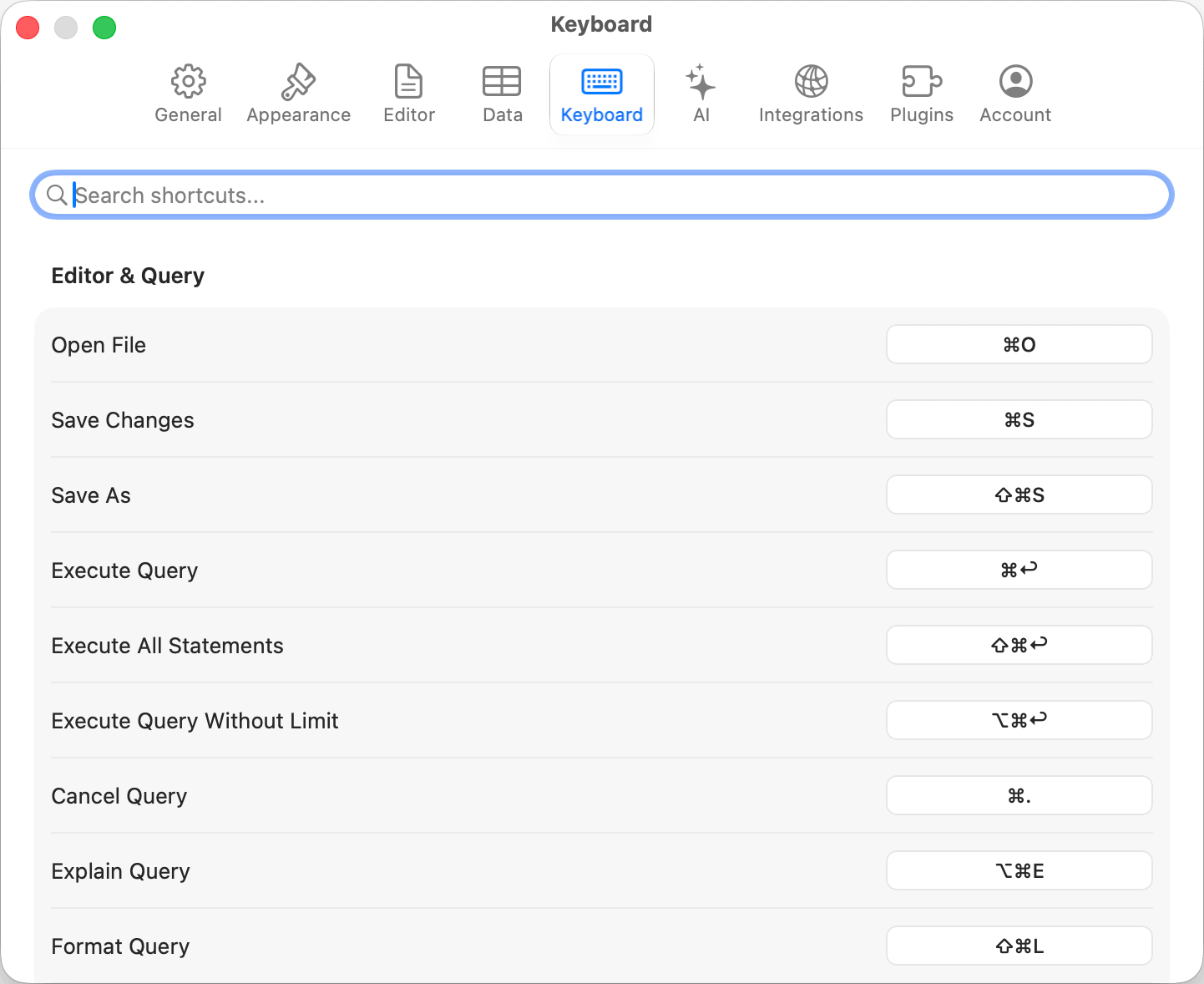
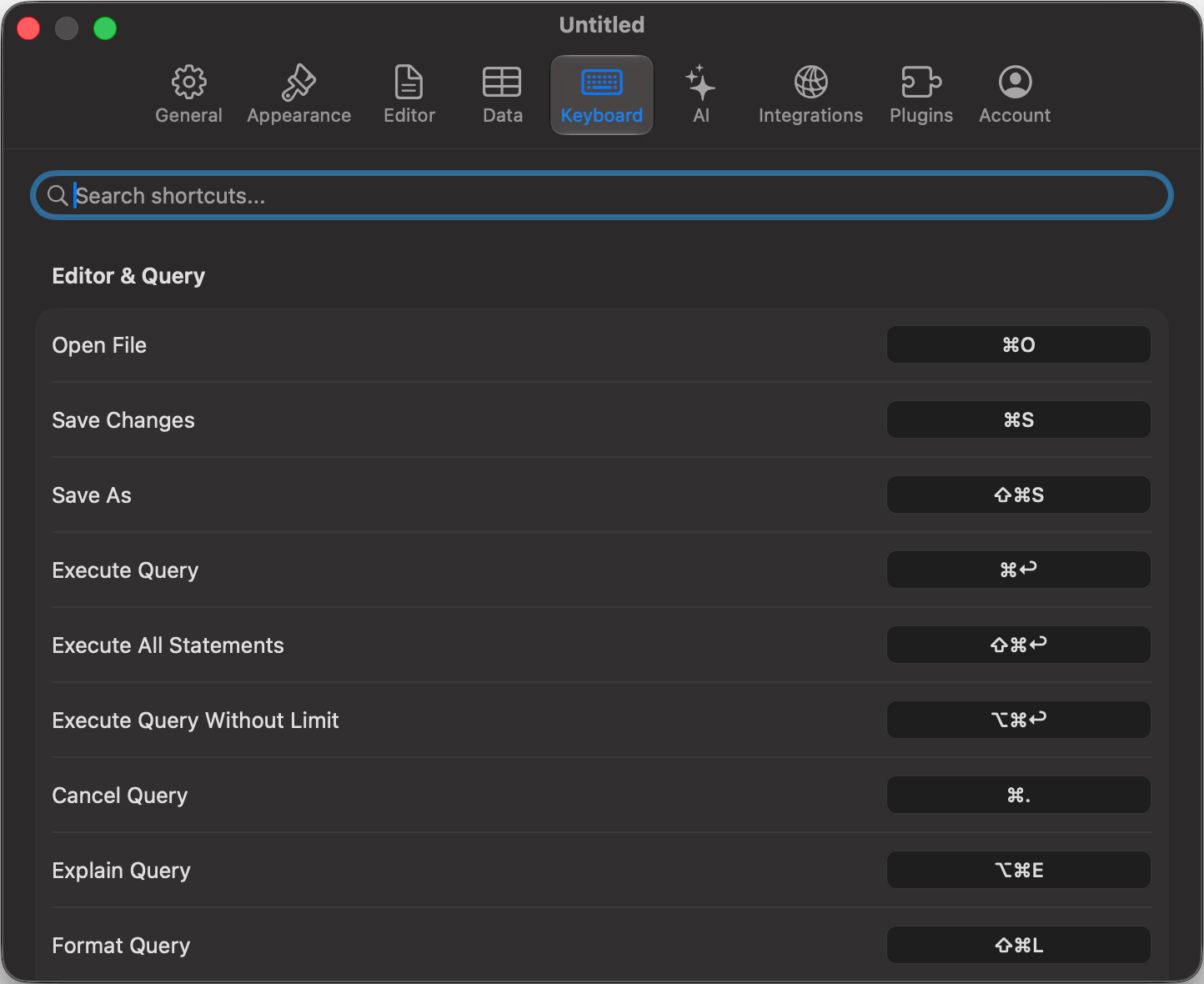 A combination already taken by another action in the same context raises a dialog naming it: **Cancel** keeps the existing assignment, **Reassign** moves the shortcut and clears it from the other action. Editor and grid actions can share a key without conflict.
Menu actions need a modifier (`Cmd`, `Option`, `Ctrl`, or `Shift`); function keys `F1` through `F12` work bare, as do grid actions that read the key directly, like Preview FK Reference (`Space`).
Some shortcuts cannot be reassigned: editor built-ins such as `Cmd+/`, tab selection (`Cmd+1` through `Cmd+9`), text size (`Cmd+=`, `Cmd+-`), Find (`Cmd+F`), and macOS system shortcuts, which are read live from System Settings. The recorder warns if you try.
## Outside the app
Drive the app with no keyboard at all: the Raycast extension, the `tablepro://` URL scheme, and MCP clients are covered in the [External API](/external-api) section.
A combination already taken by another action in the same context raises a dialog naming it: **Cancel** keeps the existing assignment, **Reassign** moves the shortcut and clears it from the other action. Editor and grid actions can share a key without conflict.
Menu actions need a modifier (`Cmd`, `Option`, `Ctrl`, or `Shift`); function keys `F1` through `F12` work bare, as do grid actions that read the key directly, like Preview FK Reference (`Space`).
Some shortcuts cannot be reassigned: editor built-ins such as `Cmd+/`, tab selection (`Cmd+1` through `Cmd+9`), text size (`Cmd+=`, `Cmd+-`), Find (`Cmd+F`), and macOS system shortcuts, which are read live from System Settings. The recorder warns if you try.
## Outside the app
Drive the app with no keyboard at all: the Raycast extension, the `tablepro://` URL scheme, and MCP clients are covered in the [External API](/external-api) section.