> ## Documentation Index
> Fetch the complete documentation index at: https://ngquct-docs-fix-500-query-results.mintlify.site/llms.txt
> Use this file to discover all available pages before exploring further.
# Open Quickly
> Search objects and queries in one connection or across every open connection
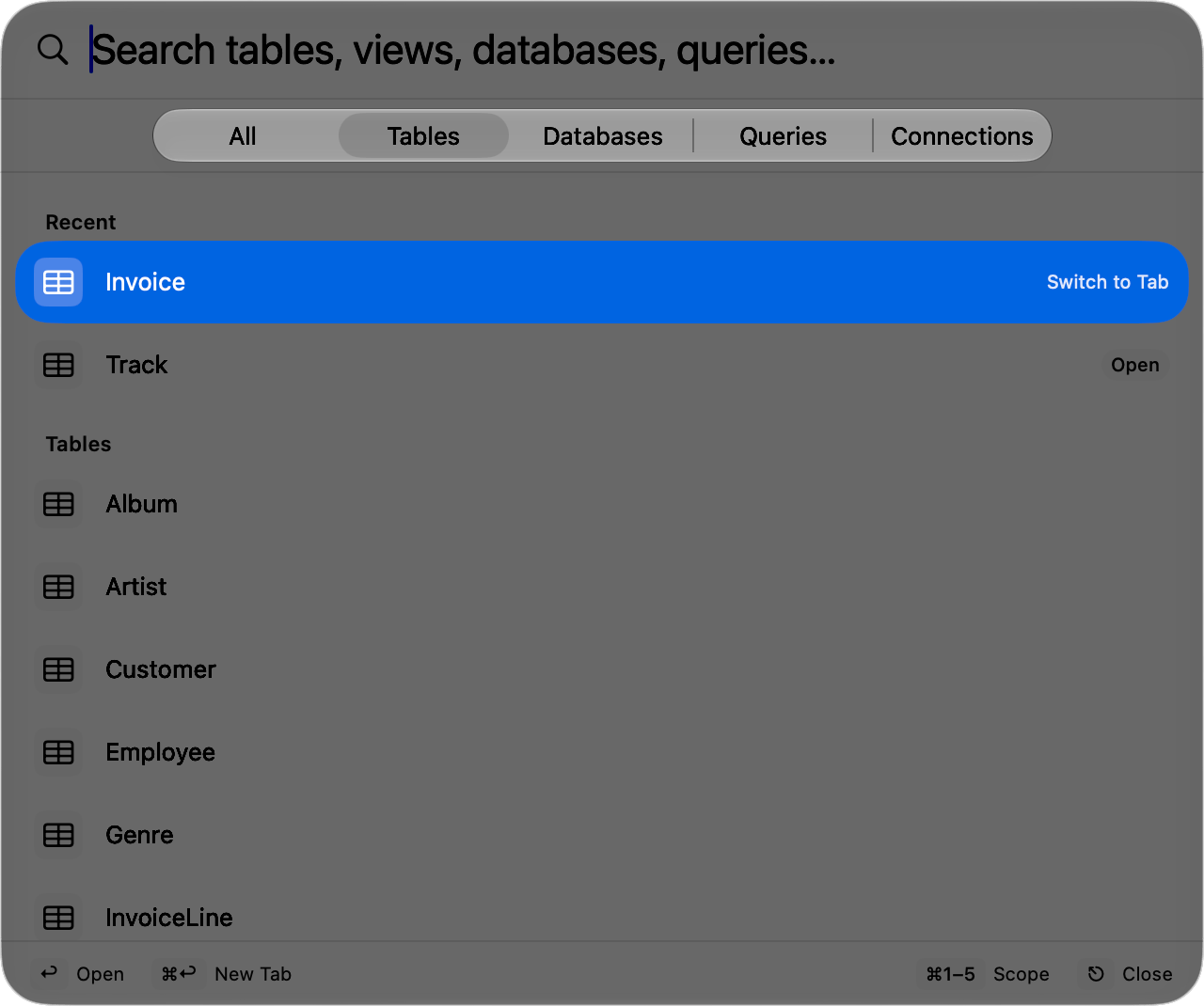
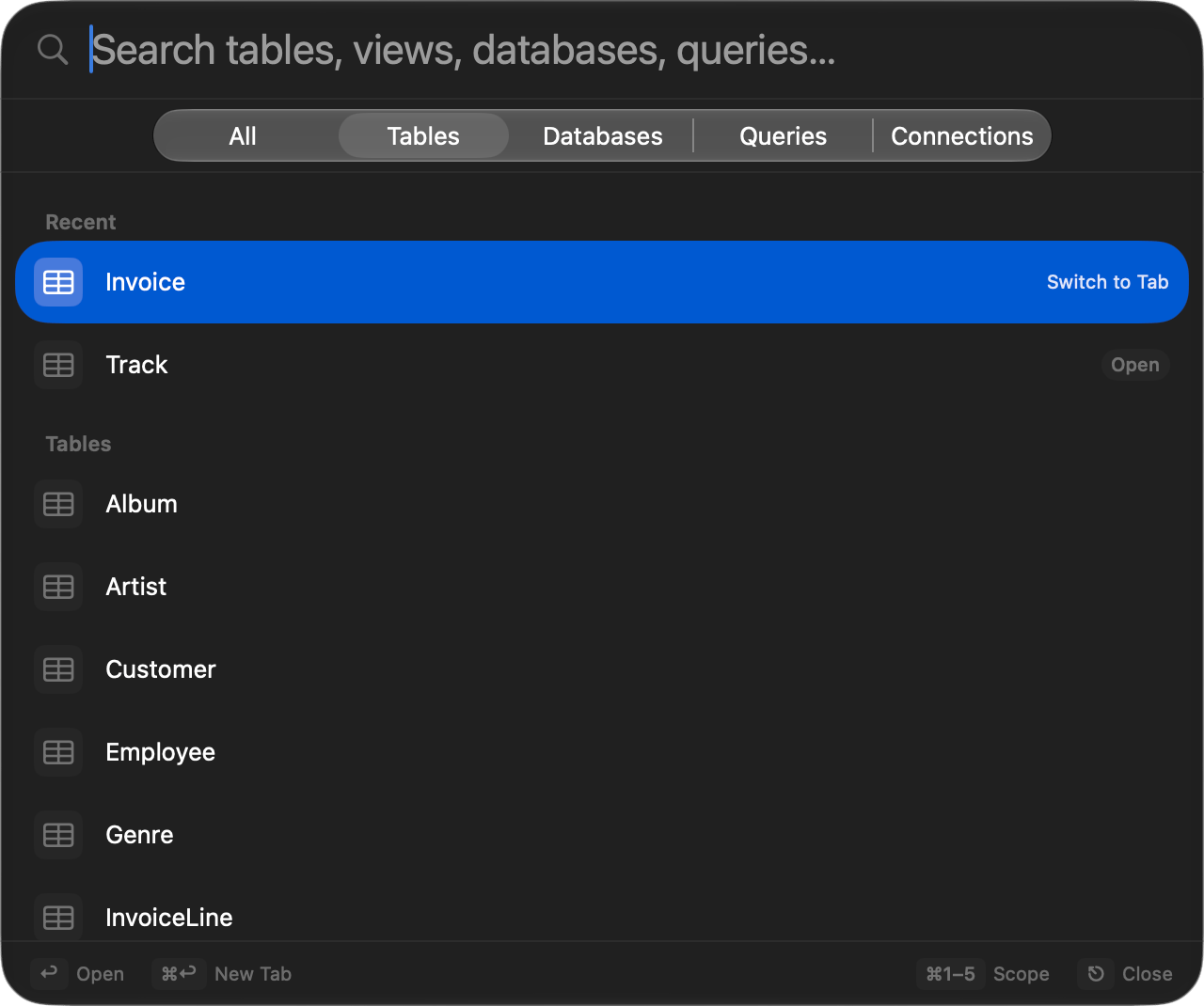
Press `Cmd+Shift+O` in a connection window, type a few characters, and press `Return`. Matching is fuzzy, so `usr` finds `users` and `user_settings`, and the characters that matched are bold. **File > Open Quickly…** opens the same panel.
 ## Keys
| Action | Shortcut |
| --------------------- | ------------------------------------------------------------------- |
| Open Quickly | `Cmd+Shift+O` |
| Move selection | `Up` / `Down`, or `Ctrl+J`/`Ctrl+N` and `Ctrl+K`/`Ctrl+P` |
| Open selected item | `Return`, or double-click |
| Open in a new tab | `Cmd+Enter` or `Option+Enter` |
| Switch scope | `Cmd+1` to `Cmd+5` |
| Clear the search text | `Escape` |
| Dismiss | `Escape` on an empty field, `Cmd+Shift+O` again, or a click outside |
The footer lists these as you go, and its `Escape` hint reads **Clear** while you have text and **Close** once the field is empty. Rebind the opening shortcut in **Settings > Keyboard**.
## Scopes
The segmented control under the search field sets the scope. It stays on screen, so switching scope after typing keeps what you typed.
| Scope | Key | Covers |
| --------------- | ------- | ------------------------------------------------------------------------------------------------- |
| **All** | `Cmd+1` | Tables, views, databases, schemas, and saved queries in this connection, plus its last 50 queries |
| **Tables** | `Cmd+2` | Tables, views, and system tables |
| **Databases** | `Cmd+3` | Databases and schemas |
| **Queries** | `Cmd+4` | Saved queries and recent queries, from every connected window |
| **Connections** | `Cmd+5` | Tables, views, and system tables in every connected window |
Leave the search empty in any scope other than All and everything in it is listed under section headers. Saved queries come from your [favorites](/features/favorites) and match on their keyword as well as their name, so a keyword you use in the editor reaches the query from here too.
Opening a table or view opens a table tab, a database or schema switches the connection to it, and a query loads into the SQL editor without running it.
## Across connections
The **Connections** and **Queries** scopes reach into every connected window, and that catalog is read the first time you open one of them, not before.
An empty search groups results under each connection's name. Once you type, everything is ranked in one list and each row names the connection, database, and schema it belongs to; the path is matched too, so typing a connection's name narrows the list to it. Opening a result brings that connection's window forward.
**Queries** holds your saved queries plus up to 200 recent ones, drawn evenly across connections rather than by raw recency, with execution times on the recent rows. Global saved queries open in the connection you opened the panel from, which stays listed even while it is reconnecting.
## Keys
| Action | Shortcut |
| --------------------- | ------------------------------------------------------------------- |
| Open Quickly | `Cmd+Shift+O` |
| Move selection | `Up` / `Down`, or `Ctrl+J`/`Ctrl+N` and `Ctrl+K`/`Ctrl+P` |
| Open selected item | `Return`, or double-click |
| Open in a new tab | `Cmd+Enter` or `Option+Enter` |
| Switch scope | `Cmd+1` to `Cmd+5` |
| Clear the search text | `Escape` |
| Dismiss | `Escape` on an empty field, `Cmd+Shift+O` again, or a click outside |
The footer lists these as you go, and its `Escape` hint reads **Clear** while you have text and **Close** once the field is empty. Rebind the opening shortcut in **Settings > Keyboard**.
## Scopes
The segmented control under the search field sets the scope. It stays on screen, so switching scope after typing keeps what you typed.
| Scope | Key | Covers |
| --------------- | ------- | ------------------------------------------------------------------------------------------------- |
| **All** | `Cmd+1` | Tables, views, databases, schemas, and saved queries in this connection, plus its last 50 queries |
| **Tables** | `Cmd+2` | Tables, views, and system tables |
| **Databases** | `Cmd+3` | Databases and schemas |
| **Queries** | `Cmd+4` | Saved queries and recent queries, from every connected window |
| **Connections** | `Cmd+5` | Tables, views, and system tables in every connected window |
Leave the search empty in any scope other than All and everything in it is listed under section headers. Saved queries come from your [favorites](/features/favorites) and match on their keyword as well as their name, so a keyword you use in the editor reaches the query from here too.
Opening a table or view opens a table tab, a database or schema switches the connection to it, and a query loads into the SQL editor without running it.
## Across connections
The **Connections** and **Queries** scopes reach into every connected window, and that catalog is read the first time you open one of them, not before.
An empty search groups results under each connection's name. Once you type, everything is ranked in one list and each row names the connection, database, and schema it belongs to; the path is matched too, so typing a connection's name narrows the list to it. Opening a result brings that connection's window forward.
**Queries** holds your saved queries plus up to 200 recent ones, drawn evenly across connections rather than by raw recency, with execution times on the recent rows. Global saved queries open in the connection you opened the panel from, which stays listed even while it is reconnecting.
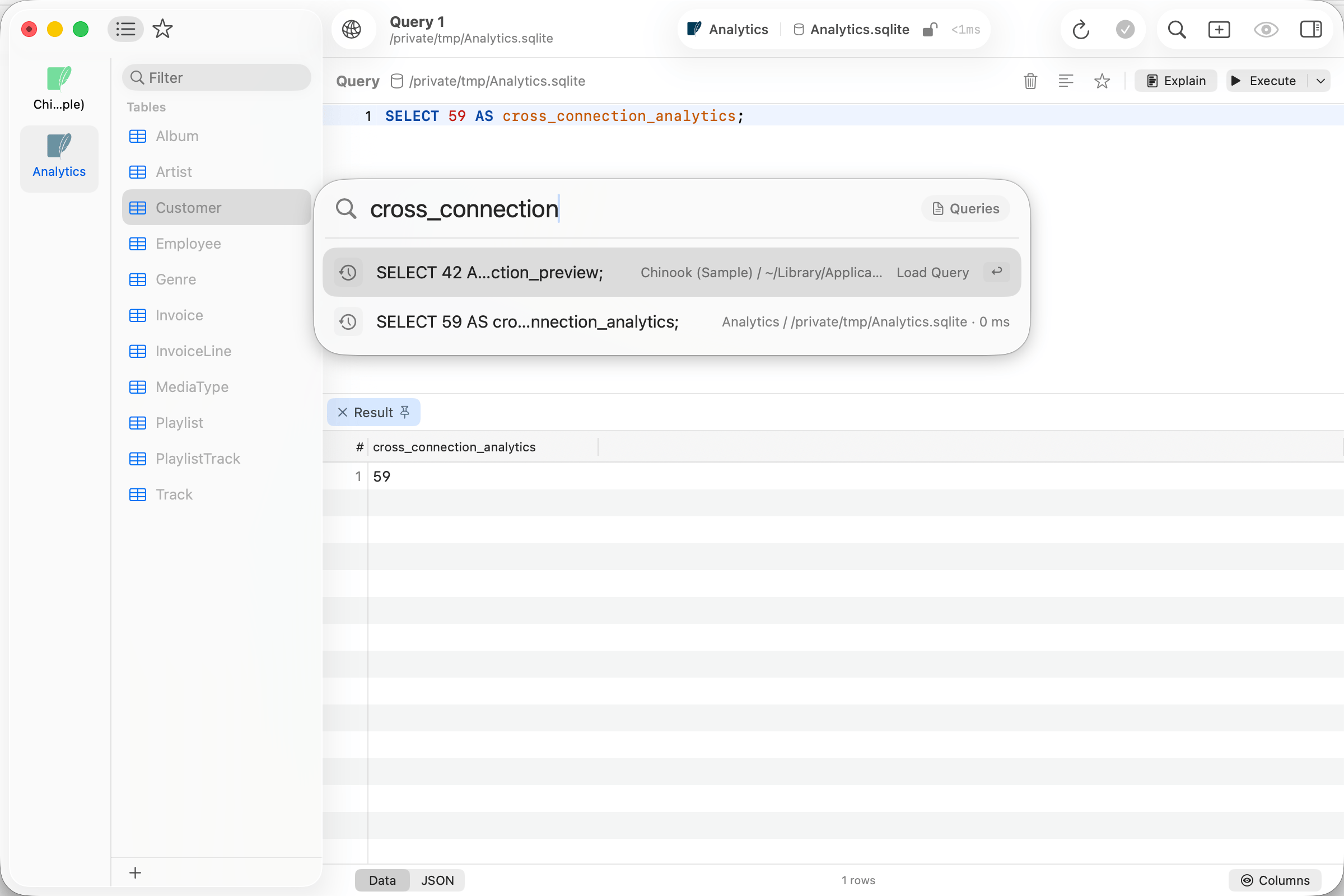 A query loads into the tab you opened the panel from when that tab is on the right connection and database. If no open tab uses the database the query was recorded against, it gets a new tab. `Cmd+Enter` and `Option+Enter` always open a new tab.
## Open badge
A table already open in a tab shows an **Open** badge, and the hint on the selected row reads **Switch to Tab**. Committing goes to that tab instead of opening a duplicate; `Cmd+Enter` and `Option+Enter` force a new one.
## Ranking
An empty search shows **Recent**: the last 10 items you opened through the panel on this connection. Once you type, a match on the name beats a match on the connection and database path beside it, tables rank above other kinds, and anything you open often through the panel or already have open in a tab moves up. The list stops at 200 results.
## When a table is not listed
* The list covers the database the connection is browsing. To reach a table somewhere else, switch database first, then search again.
* The **Databases** scope offers only databases the sidebar's database filter shows. Clear the filter with **View > Show All Databases**.
* The **Connections** scope covers connected windows only, and only the database each one is browsing.
## Right-click actions
| Action | Applies to |
| --------------- | ----------------------------------------------------------- |
| Open | All items |
| Open in New Tab | Tables, views, system tables, saved queries, recent queries |
| Open Structure | Tables, views, and system tables in the current connection |
| Copy Name | All items |
| Copy Query | Saved and recent queries |
A query loads into the tab you opened the panel from when that tab is on the right connection and database. If no open tab uses the database the query was recorded against, it gets a new tab. `Cmd+Enter` and `Option+Enter` always open a new tab.
## Open badge
A table already open in a tab shows an **Open** badge, and the hint on the selected row reads **Switch to Tab**. Committing goes to that tab instead of opening a duplicate; `Cmd+Enter` and `Option+Enter` force a new one.
## Ranking
An empty search shows **Recent**: the last 10 items you opened through the panel on this connection. Once you type, a match on the name beats a match on the connection and database path beside it, tables rank above other kinds, and anything you open often through the panel or already have open in a tab moves up. The list stops at 200 results.
## When a table is not listed
* The list covers the database the connection is browsing. To reach a table somewhere else, switch database first, then search again.
* The **Databases** scope offers only databases the sidebar's database filter shows. Clear the filter with **View > Show All Databases**.
* The **Connections** scope covers connected windows only, and only the database each one is browsing.
## Right-click actions
| Action | Applies to |
| --------------- | ----------------------------------------------------------- |
| Open | All items |
| Open in New Tab | Tables, views, system tables, saved queries, recent queries |
| Open Structure | Tables, views, and system tables in the current connection |
| Copy Name | All items |
| Copy Query | Saved and recent queries |